

Quota approval is required before the network interface configuration unlocks.
Enable during server creation
- In the Gcore Customer Portal, navigate to Cloud > Bare Metal and click Create Bare Metal.
- Select a region where Advanced DDoS Protection is available, then select an image and a server type. In the Network interfaces section, set the network type to Public or Dedicated public.
- Enable Advanced DDoS Protection.
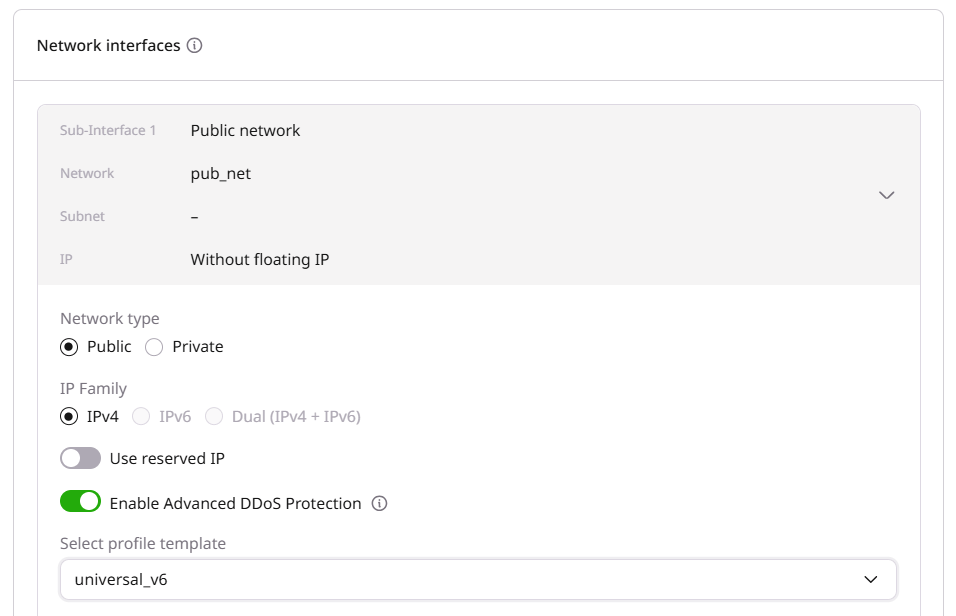
The toggle is shown for Public and Dedicated public interfaces. Private interfaces cannot use this feature. Where the region does not support Advanced DDoS Protection, the toggle stays disabled and the tooltip names the region.
- Open the profile template dropdown and select a template. Each template requires different fields, and the available options depend on the region.
- In the SSH Keys section, select an SSH key for Linux servers or set a password for Windows servers.
- Enter the server name template and click Create Server.
Enable on an existing server
- In the Customer Portal, navigate to Cloud > Bare Metal and click the server name.
- Open the Networking tab.
- In the public or dedicated public interface row, open the three-dot menu and select Enable Advanced DDoS Protection.
- In the Create Advanced DDoS protection profile dialog, select a profile template from the dropdown, fill in the required fields, and click Submit.
Enable from the DDoS Protection list
- In the Customer Portal, navigate to Cloud > Networking > DDoS Protection.
- Locate the Bare Metal server in the list, open the three-dot menu on the right, and select Enable Advanced DDoS Protection.
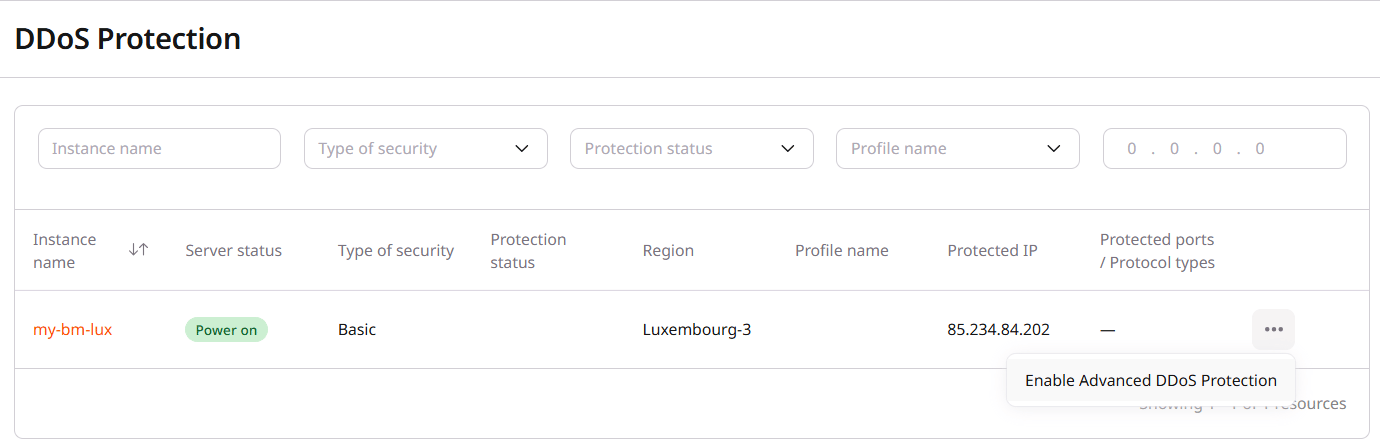
- In the Create Advanced DDoS protection profile dialog, open the profile template dropdown and select a template. Profile templates vary by region. Frankfurt-2 offers universal_v3, universal_v5, and universal_v6.
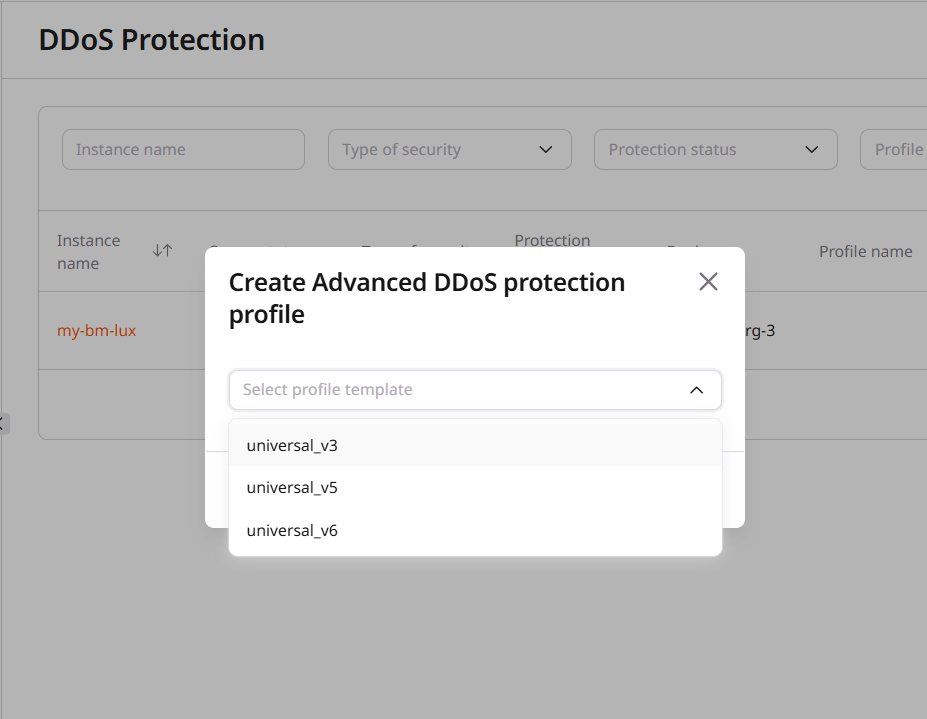
- Complete the required fields for the selected template.
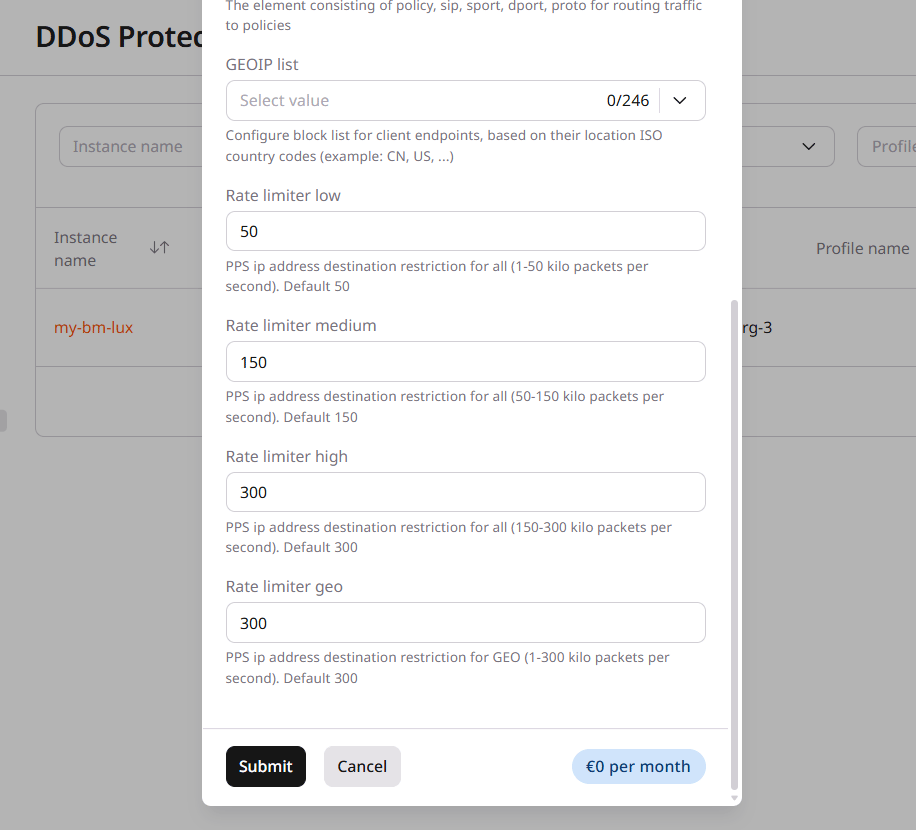
- Click Submit. The protection type changes from Basic to Advanced, and the profile name and parameters appear in the list.