

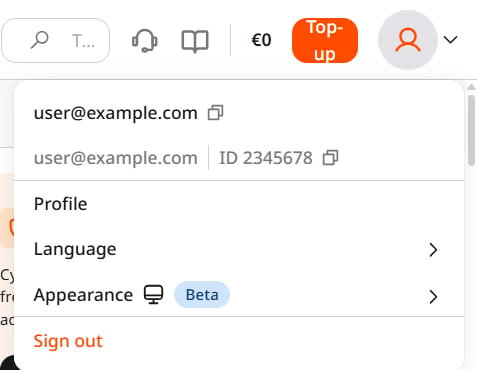
My profile
Manage your personal settings, including your password and language preferences, or review your login history. Changes here affect only your profile.
Account
Manage the account’s identity, billing address, tax information, and payment method. Accounts can belong to individuals or companies, with company details reflected on invoices.
Billing
Review how charges are calculated and billed to your account. To change the payment method used for these charges, go to Account.
All users
Manage access for people who share your account. Portal roles restrict access in CDN and Streaming, while Edge Cloud has its own roles. In Managed DNS, Object Storage, and WAAP, portal roles do not restrict what account users can do.
API tokens
Create tokens for applications and scripts that need to access Gcore APIs without an interactive login. Unlike a user session, which lasts one hour, tokens support access beyond a single sign-in session.
Notifications
Manage which emails are sent to individual users and which notifications are enabled for the account. Changes to account-wide notifications affect everyone who uses the account.