

Configure a dashboard
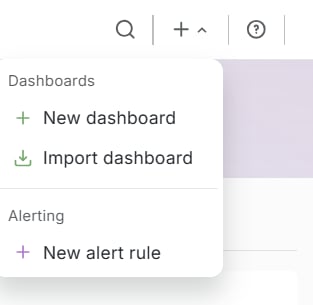
The panel uses the connected Gcore Platform-EN data source.- In the top bar, click +, then New dashboard.
- The Add drawer opens on the right. Click Panel.
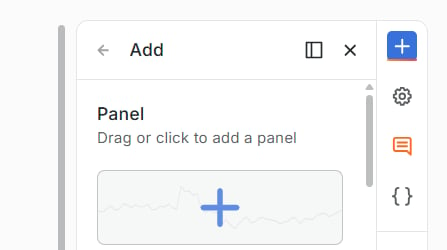
- Click Edit visualization.
- Under Data source, select Gcore Platform-EN.
- Under Edge Network, set Service to CDN.
- Under Query Props, set Metric, Granularity, and Group By. Filters under Filters (comma separated) are optional.
- Click Save. In Save dashboard, enter a title and click Save.
Query fields
CDN queries cover delivery traffic, cache efficiency, and request or response trends. The metric values match the CDN statistics API. An alert rule on one of these queries changes state when a value crosses a threshold. Metrics
Granularity:
5m, 15m, 1h, or 1d.
Group By: Resource, Client, Vhost (custom domain), Region, Country, or Datacenter. More than one value can be selected. The query sends resource, client, vhost, region, country, or dc.
Filters (comma separated): optional Vhosts, Resources, Clients, Regions, and Countries fields narrow the series. Separate several values with commas.
Legend Format: the default legend includes the metric name and the group-by values. A custom template uses placeholders in double curly braces that match the grouping: Traffic ({{resource}}).
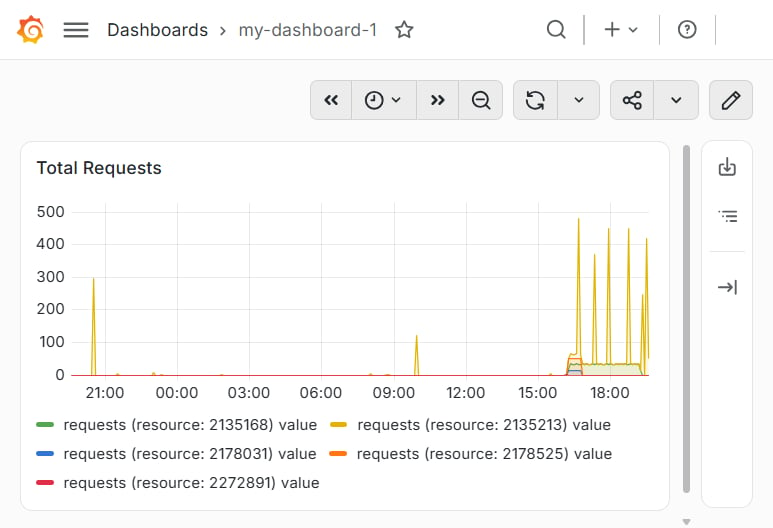
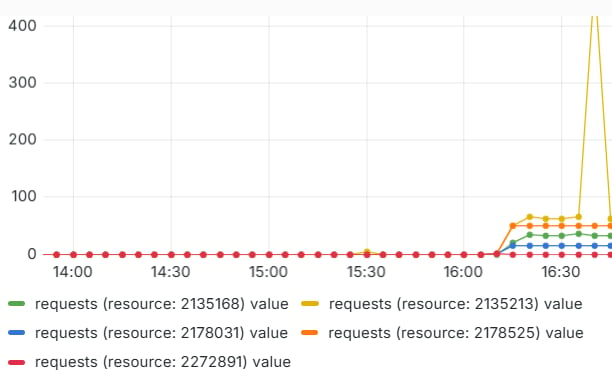
Total Requests, granularity 5m, and Group By set to Resource produce one series per CDN resource:
Dashboard variables
Dashboard variables can drive CDN filters so the same panel switches between resources, clients, or other dimensions without editing the query.- On the dashboard, click Add variable, then Query.
-
Set Name to the name used in the filter.
resourcematches the Resources filter. - Under Query options, click Open variable editor. Select Gcore Platform-EN, then set Values for to resourceID, vhost, client, country, or region.
- Sort, Multi-value, and Include All value are optional.
-
Click Apply. In the matching CDN filter, enter the variable with a
$prefix.$resourcegoes in Resources. - Save the dashboard.