

GCORE_TOOLS pattern.
Prerequisites
- Gcore API token with permissions for the operations to perform
- uv package manager installed
- Cursor IDE 0.40 or later
Step 1. Add Gcore MCP Server to Cursor
Open the Cursor MCP configuration file:- Windows
- macOS/Linux
gcore-mcp-server entry to the mcpServers object. If the file is empty, create it with the full structure shown below.
your-api-key with the Gcore API token.
If the file already contains other MCP servers, add the gcore-mcp-server block inside the existing mcpServers object without removing other entries.
Step 2. Verify the connection
Restart Cursor to load the new configuration. Open Settings and navigate to Features → MCP. Thegcore-mcp-server entry appears with a green indicator and lists the loaded tools.
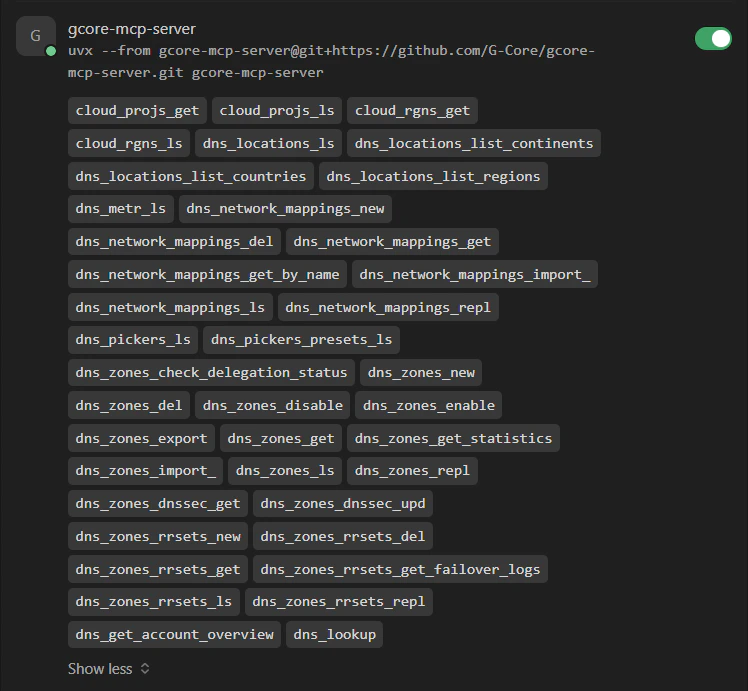
If the server does not appear in MCP settings, verify that the
mcp.json file has valid JSON syntax — a missing comma or bracket prevents loading. Check that uv is installed (uv --version) and restart Cursor fully (quit and reopen, not just reload the window).Step 3. Test with a query
Open a Cursor chat and ask a question using the connected product. WithGCORE_TOOLS="dns.*":
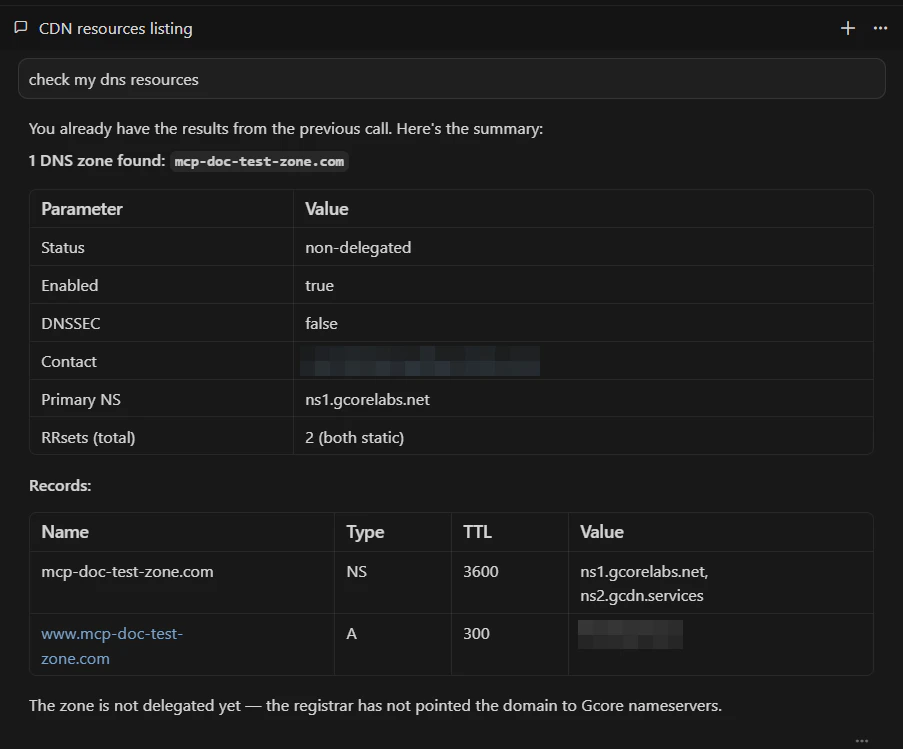
If tools are not available in chat, confirm the
GCORE_API_KEY value has no extra spaces or quotes, verify the token is active in the Gcore Customer Portal, and check that the GCORE_TOOLS pattern matches at least one tool name. Use MCP Inspector to verify the pattern. Requests returning “401 Unauthorized” indicate an invalid or expired token — see API token permissions for required roles.Switch to a different product
To work with a different Gcore product, update theGCORE_TOOLS value in mcp.json and restart Cursor.
| Product | Pattern | Approximate tool count |
|---|---|---|
| DNS | dns.* | 35 |
| Storage | storage.* | 40 |
| FastEdge | fastedge.* | 20 |
| IAM | iam.* | 20 |
| Streaming | streaming.* | 60 |
| CDN | cdn.cdn_resources.* | ~15 |
| Cloud (basic) | management,instances | ~25 |