> ## Documentation Index
> Fetch the complete documentation index at: https://gcore.com/docs/llms.txt
> Use this file to discover all available pages before exploring further.
# Authenticate to functions with API keys
This guide explains how to add and edit API keys to protect your function endpoints from unauthorized access.
## Create an API key
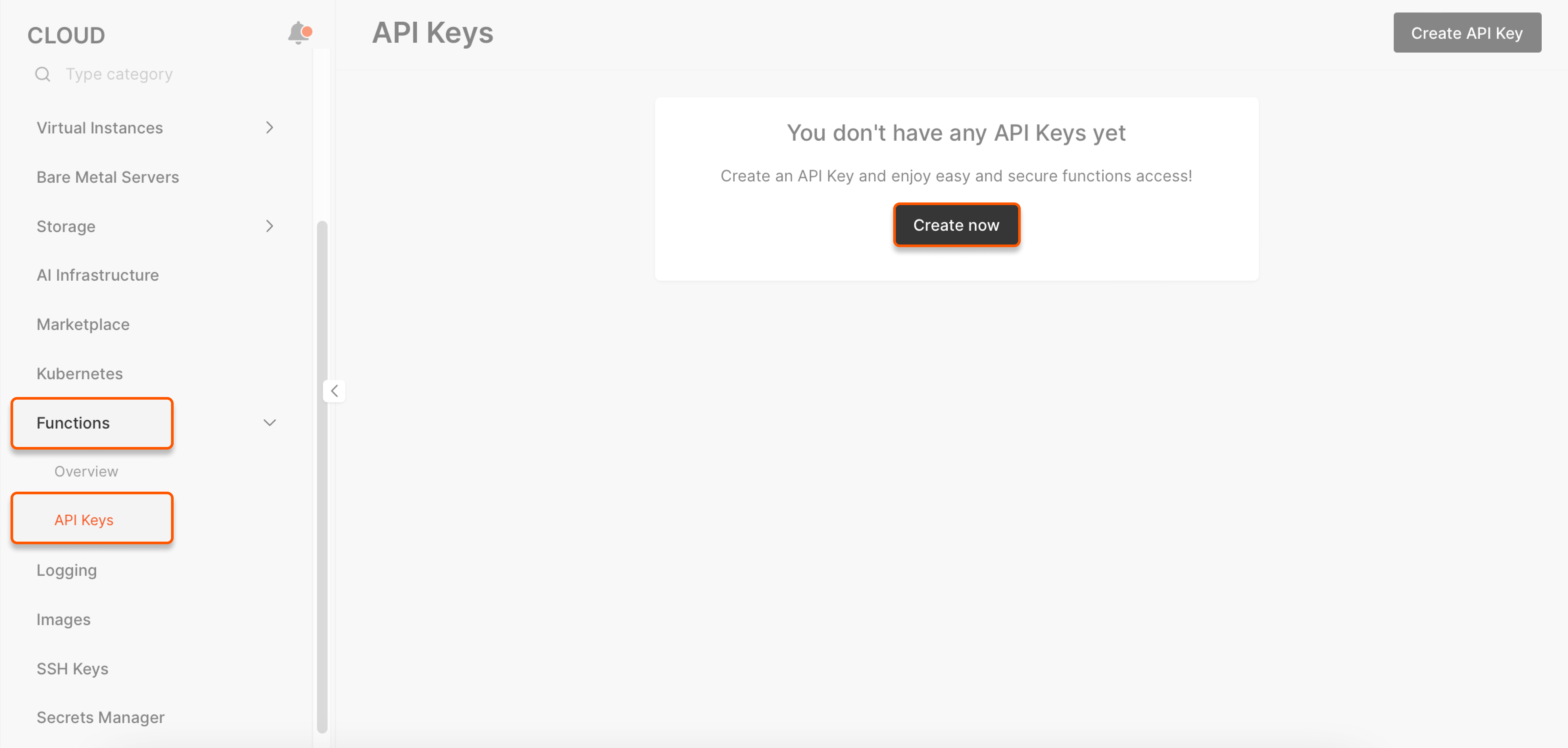
1. In the **Cloud** menu, go to **Functions**, select **API keys**, and click **Create now**.
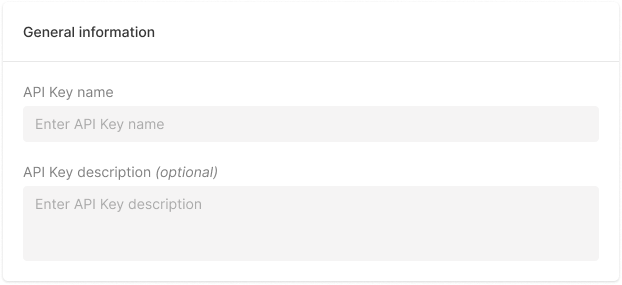
 2. In **General information**, specify the API key name (required) and description (optional.)
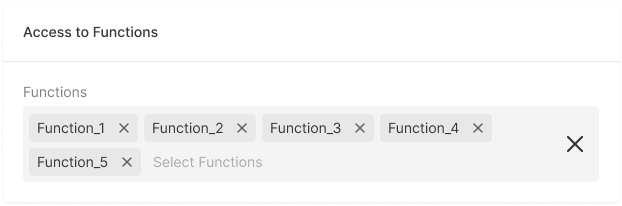
 3. In **Access to Functions**, specify which functions can be authenticated using the given key.
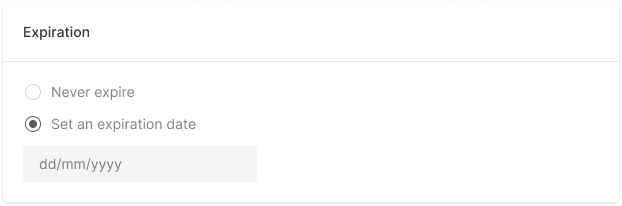
 4. For **Expiration**, set the date until when the API key remains valid. Alternatively, if you don't want to update your key, select **Never expire**.
 5. Click **Create**.
6. Copy and save the key.
**Note** : You will not be able to see the key again. We do not store tokens, so the responsibility for token storage and usage rests with the issuer.
Your API key is active. From now on, anyone attempting to access your function endpoint must include a valid API key in the `X-API-Key` header. Otherwise, they will receive a 401 error.
If you've set the expiry date, you'll get a notification in the Customer Portal before it expires.
## Change API key settings
You can change the description, expiration date, and functions that can be accessed with a given key.
1. Go to the API key list, click the three dots next to the key you want to change, and click **Edit**.
5. Click **Create**.
6. Copy and save the key.
**Note** : You will not be able to see the key again. We do not store tokens, so the responsibility for token storage and usage rests with the issuer.
Your API key is active. From now on, anyone attempting to access your function endpoint must include a valid API key in the `X-API-Key` header. Otherwise, they will receive a 401 error.
If you've set the expiry date, you'll get a notification in the Customer Portal before it expires.
## Change API key settings
You can change the description, expiration date, and functions that can be accessed with a given key.
1. Go to the API key list, click the three dots next to the key you want to change, and click **Edit**.
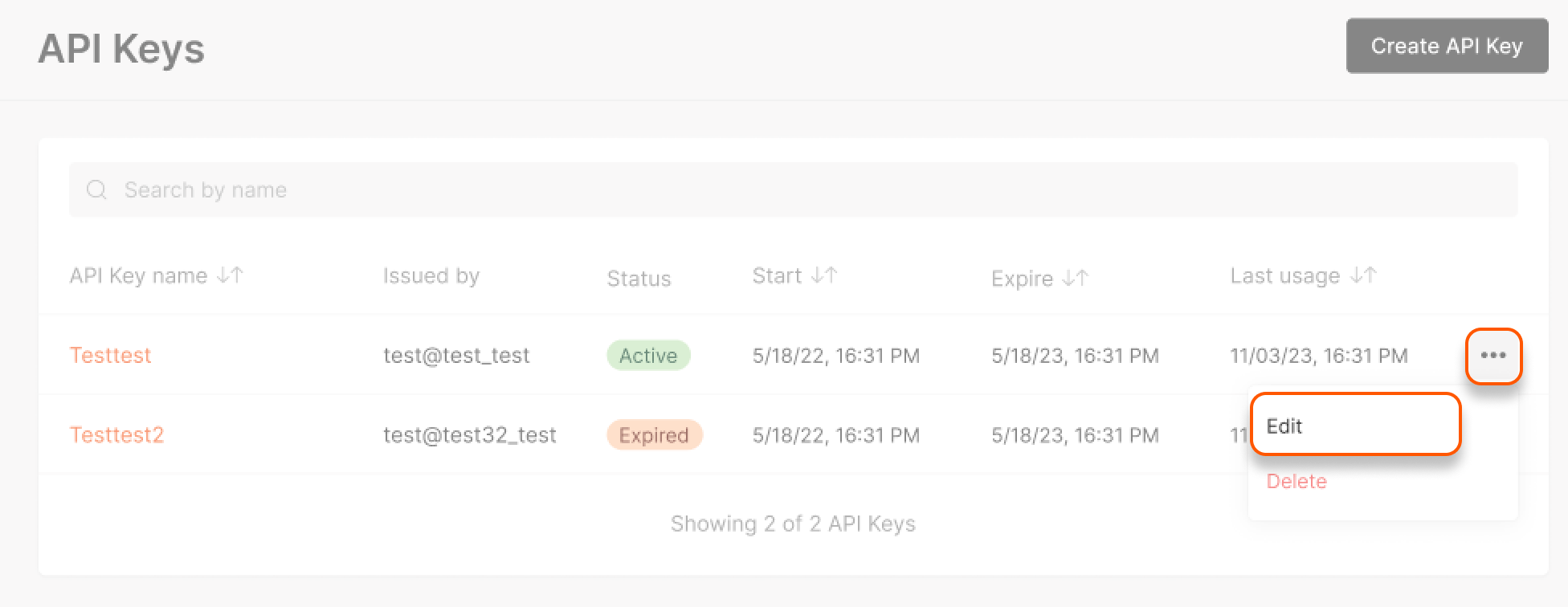 2. Go to the tab you need and change the settings as follows:
* **General** : Change the key description.
* **Access to Functions** : Change the functions that can be authenticated with the key.
* **Expiration** : Reset the expiry date.
3. Click **Save**.
## Delete an API key
1. Go to the API key list, click the three dots next to the key you want to delete, and click **Delete**.
2. Go to the tab you need and change the settings as follows:
* **General** : Change the key description.
* **Access to Functions** : Change the functions that can be authenticated with the key.
* **Expiration** : Reset the expiry date.
3. Click **Save**.
## Delete an API key
1. Go to the API key list, click the three dots next to the key you want to delete, and click **Delete**.
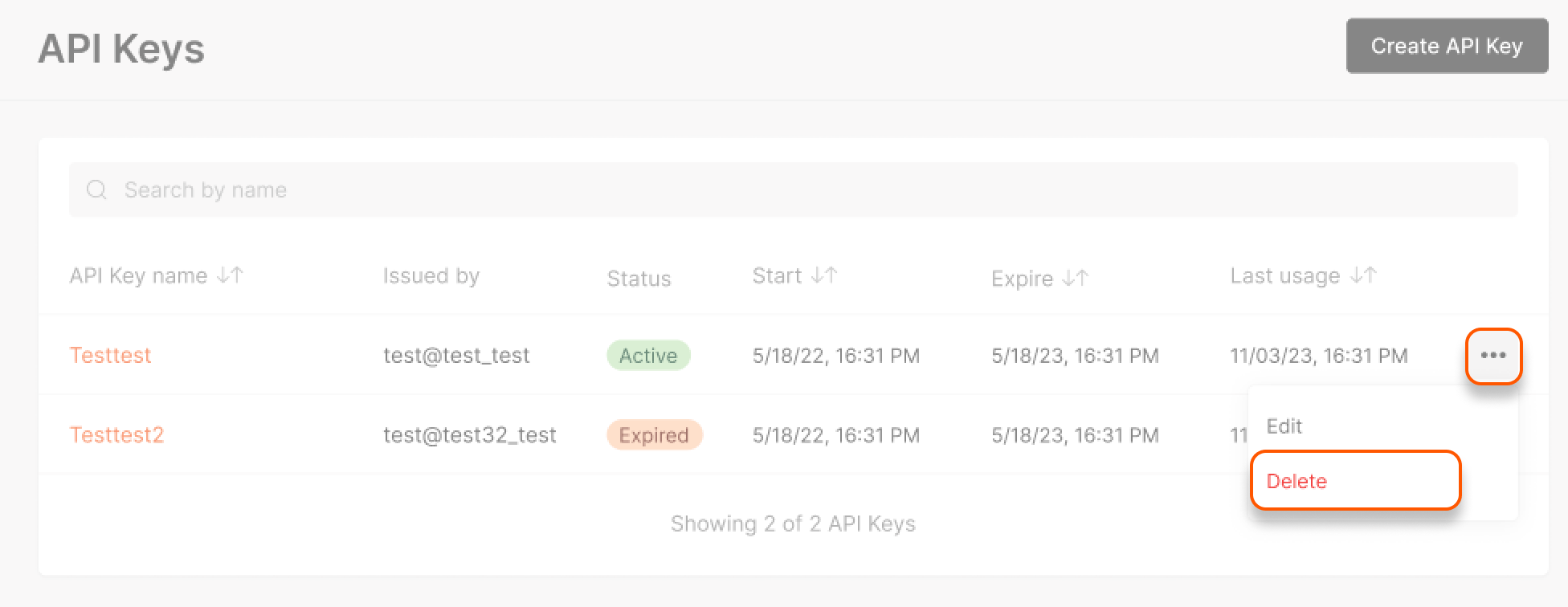 2. Confirm the deletion.
## FAQs
1. **What should I do if I forget or lose my API key?**
Delete the key in the Customer Portal, create a new one and add it to the function.
2. **Can I revoke an API key if it was compromised?**
If your key was compromised, delete it in the Customer Portal, create a new one and add it to the function.
3. **How can I check if my API key is still valid?**
Valid keys have the status "Active" in the API key list. If an API key is no longer valid, it will have the status "Expired".
2. Confirm the deletion.
## FAQs
1. **What should I do if I forget or lose my API key?**
Delete the key in the Customer Portal, create a new one and add it to the function.
2. **Can I revoke an API key if it was compromised?**
If your key was compromised, delete it in the Customer Portal, create a new one and add it to the function.
3. **How can I check if my API key is still valid?**
Valid keys have the status "Active" in the API key list. If an API key is no longer valid, it will have the status "Expired".